WordPress Staging Site: How to Set One Up Without Breaking Production

Key Takeaways
- ✓Plugin, theme and core updates are a common cause of broken WordPress sites, so test them on a staging copy first.
- ✓Staging plugins on shared hosting share the live site's memory and PHP workers and can corrupt serialized data during search-and-replace.
- ✓When pushing to live, deploy code separately from the database so new WooCommerce orders and users are never overwritten.
Table of Contents
- •WordPress Staging Site: How to Set One Up Without Breaking Production
- •The Hidden Risk of Testing on Live WordPress Sites
- •Why Traditional Staging Plugins Fail Under Load
- •PHP Worker and Memory Exhaustion
- •Corrupted Serialized Data Strings
- •Search Engine De-indexing Accidents
- •Architecting a True Container-Isolated WordPress Staging Environment
- •Docker and LXD Container Virtualization
- •Subdomain Routing and Basic Authentication Guards
- •Shared vs Isolated Media Upload Architectures
- •Step-by-Step: Deploying and Syncing a Staging Environment
- •Step 1: Container Cloning via WP-CLI and Docker
- •Step 2: Sanitizing Search-and-Replace URLs
- •Step 3: Handling WP-Config Constants and Debug Flags
- •Step 4: Safe Selective Database Merging
- •Preventing Data Loss During Staging Merges (The E-Commerce Challenge)
- •WordPress Staging Architecture Comparison Matrix
- •Who Needs Containerized Staging? (Audience Personas)
- •1. High-Volume E-Commerce Merchants
- •2. Digital Marketing & Web Development Agencies
- •3. Compliance and Security-Critical Sectors
- •Frequently Asked Questions
- •Automate Your Staging Workflow with RackUp IT
WordPress Staging Site: How to Set One Up Without Breaking Production
Every WordPress administrator, agency developer, and business owner knows the cold dread of clicking "Update All Plugins" on a live website, only to be greeted by the infamous "There has been a critical error on this website" white screen. In high-stakes environments—whether managing e-commerce transactions or client appointment bookings—downtime directly burns revenue and damages brand credibility.
Plugin, theme and core updates are one of the most common reasons a working WordPress site suddenly breaks. Yet many site owners still test changes directly in production, because traditional staging setups are either clunky or cost extra on budget hosting.
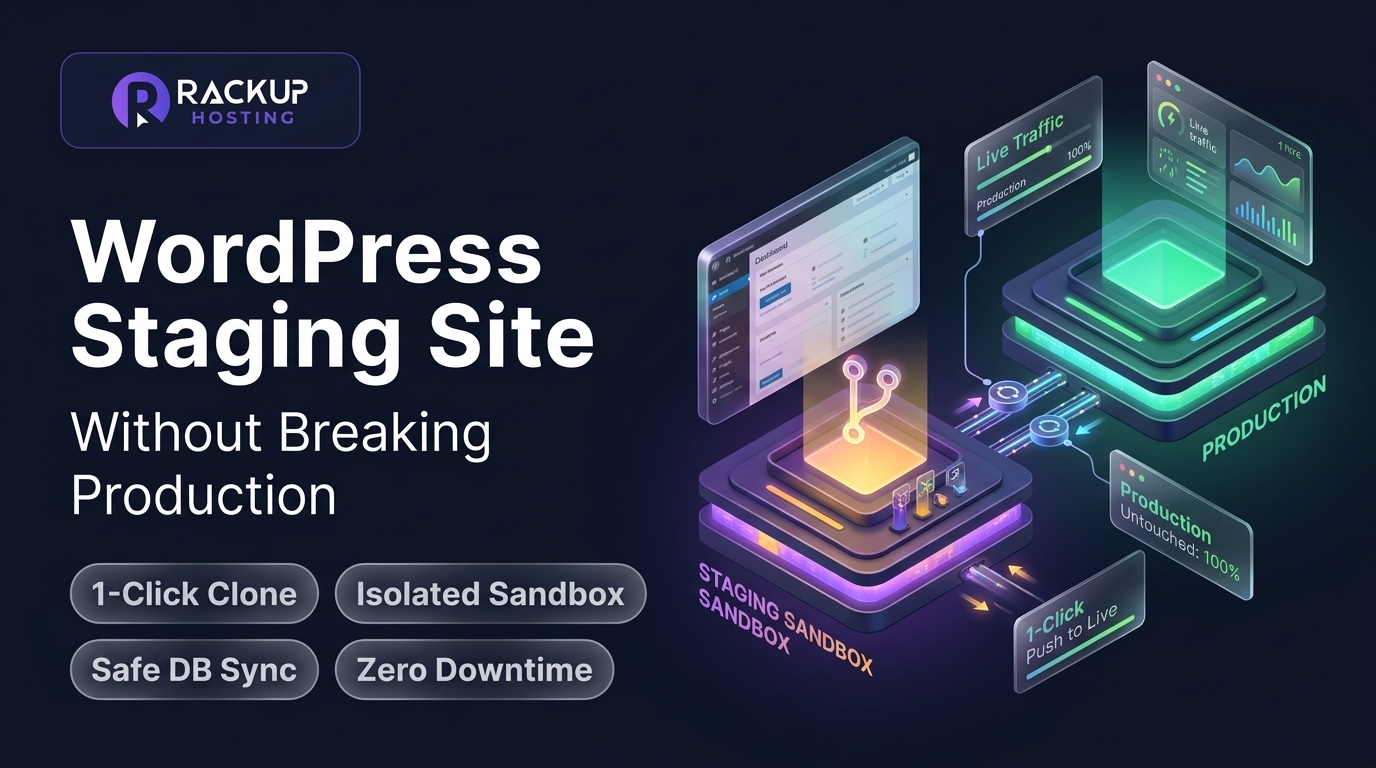
Setting up a dedicated wordpress staging site is the single most effective insurance policy you can establish for your web operations. But not all staging environments are built equal. In this guide, we examine why plugin-based staging creates dangerous server overhead and show how a separate staging copy lets you test updates, debug code, and push changes to live in one click.
The Hidden Risk of Testing on Live WordPress Sites
When you run a business website, your production server is continuously handling concurrent requests: serving cached pages, running background cron jobs, processing payment webhooks, and reading and writing to your database.
Executing updates directly on live WordPress instances introduces catastrophic variables:
1. PHP Version Incompatibilities: A plugin author might adopt modern PHP 8.2 or 8.3 syntax that causes fatal parse errors if your host runs an outdated execution environment.
2. Database Schema Migrations: Complex plugins (such as WooCommerce, LearnDash, or Elementor) alter database tables during major upgrades. If a migration times out midway through execution, your database enters an inconsistent state that cannot be undone by simply deactivating the plugin.
3. Third-Party API Breaking Changes: CRM synchronizations, payment gateways, and shipping calculators frequently update endpoints that require testing before taking customer orders.
4. Fatal JavaScript Runtime Failures: Theme asset updates often introduce minified JavaScript conflicts that silently break mobile navigation menus or prevent "Add to Cart" buttons from firing.
Testing on production turns your real visitors into unwitting QA testers. For local businesses and growing agencies, this leads to lost sales and severe client dissatisfaction, a pattern we cover in our guide to reliable hosting for local businesses.
Why Traditional Staging Plugins Fail Under Load
Faced with the complexity of manual FTP and database exports, many website owners turn to popular staging plugins downloaded from the WordPress repository. While convenient for static brochure sites, plugin-based staging introduces severe structural vulnerabilities on production servers.
[Traditional Shared Hosting Server]
  └── public_html/
       ├── wp-content/ (Live Site Files)
       └── staging-folder/ (Staging Site Files - Duplicated Disk & Database Bloat)
            └── Shared PHP Workers (Saturated when both sites run concurrently!)
PHP Worker and Memory Exhaustion
Staging plugins operate *inside* your existing WordPress installation. When a plugin duplicates your files and database into a subdirectory (e.g., example.com/staging), it consumes your live web server's allocated memory (WP_MEMORY_LIMIT) and shared PHP worker pool.
If your live site experiences a sudden traffic surge while your staging plugin is compiling a 5GB backup archive, your server will exhaust its worker threads, triggering immediate 504 Gateway Timeout errors for incoming customers.
Corrupted Serialized Data Strings
WordPress stores theme options, widget settings, and plugin configurations as serialized PHP arrays (e.g., a:2:{s:4:"name";s:6:"RackUp";}). If a staging plugin performs a crude SQL search-and-replace to change https://example.com to https://staging.example.com without accurately recalculating string length offsets, the serialization breaks. This results in missing headers, broken page layouts, and vanished theme styling upon deployment.
Search Engine De-indexing Accidents
A common catastrophe with subdirectory staging is search crawler indexing. If the staging plugin fails to inject strict noindex, nofollow HTTP response headers and robots.txt directives, Googlebot will discover the staging duplicate, triggering duplicate content penalties or canonical URL cannibalization.
Architecting a True Container-Isolated WordPress Staging Environment
To eliminate resource contention and database hazards, professional hosting infrastructure separates production and staging into isolated virtualization containers.
[Example: container-isolated staging setup]
  │
  ├── [Container A: Production Instance] ──(Port 443 / SSL)──> live.example.com
  │     ├── Dedicated NGINX Worker Pool
  │     ├── Isolated PHP 8.3-FPM Process
  │     └── Production MariaDB Database (Live Orders & Users)
  │
  └── [Container B: Staging Sandbox] ──────(HTTP Basic Auth)──> staging.example.com
        ├── Cloned File System & Codebase
        ├── Sandboxed Test Database (Safe to Break)
        └── Strict Robots: Disallow / Noindex Header
Docker and LXD Container Virtualization
Rather than running two WordPress instances inside the same user folder, modern platforms deploy isolated Docker or LXD containers. Each container receives its own independent file system namespace, isolated memory limits, and dedicated PHP process pools. If a buggy plugin causes an infinite PHP loop or fatal segmentation fault in Container B (Staging), Container A (Production) continues serving customer traffic at peak velocity without noticing.
Subdomain Routing and Basic Authentication Guards
A secure staging architecture maps the test environment to an isolated subdomain (e.g., staging.yourdomain.com). Server-level NGINX configurations enforce HTTP Basic Authentication (password protection before the WordPress login screen is ever loaded) alongside an immediate X-Robots-Tag: noindex, nofollow header. This keeps the staging copy private and out of Google's index.
Shared vs Isolated Media Upload Architectures
A primary challenge when cloning a 20GB website is disk consumption. Duplicating entire /wp-content/uploads/ directories strains disk storage and slows down snapshotting. Professional staging systems utilize symbolic links (symlinks) or NGINX fallback proxying:
# Staging NGINX Fallback for Missing Media Files
location ~* ^/wp-content/uploads/(.*)$ {
    try_files $uri @production_media;
}

location @production_media {
    proxy_pass https://example.com/wp-content/uploads/$1;
    proxy_set_header Host example.com;
}
This elegant architectural rule allows your staging site to load all historical product images and gallery media directly from production without copying a single gigabyte of image files to the staging disk!
Step-by-Step: Deploying and Syncing a Staging Environment
Here is how high-performance infrastructure engineers create and manage a staging pipeline using automated container tools and WP-CLI:
Step 1: Container Cloning via WP-CLI and Docker
First, the live site files and database are snapshotted in seconds using copy-on-write storage volumes:
# Export the live database cleanly without locking transactional tables
wp db export /tmp/production_backup.sql --single-transaction --quick

# Clone production files to the isolated staging volume
rsync -aP --exclude 'wp-content/cache' --exclude 'wp-content/uploads' /root/wpsites/live/html/ /root/wpsites/staging/html/

# Import the database into the staging database container
wp db import /tmp/production_backup.sql --path=/root/wpsites/staging/html/
Step 2: Sanitizing Search-and-Replace URLs
To make sure the staging environment points exclusively to staging assets without breaking serialized data, execute a native WP-CLI search and replace:
wp search-replace 'https://example.com' 'https://staging.example.com' \
  --all-tables \
  --precise \
  --recurse-objects \
  --skip-columns=guid \
  --path=/root/wpsites/staging/html/
Step 3: Handling WP-Config Constants and Debug Flags
In the staging copy, edit wp-config.php to enable full debug logging, and discourage search engines with wp option update blog_public 0:
// Enable verbose debug logging to wp-content/debug.log
define('WP_DEBUG', true);
define('WP_DEBUG_LOG', true);
define('WP_DEBUG_DISPLAY', false);
@ini_set('display_errors', 0);

// Tip: stop staging from emailing real customers with a mail-blocking plugin
// or a small mu-plugin that short-circuits wp_mail().
Step 4: Safe Selective Database Merging
The biggest pitfall when pushing staging changes back to live is overwriting fresh customer activity. If your staging development took 3 days, your live store likely received new orders, user accounts, and customer reviews.
A professional workflow pushes code files (themes, plugins, child CSS) and selectively updates specific configuration options, while preserving live transactional tables:
wp_posts(new blog content can be imported with custom post IDs)Exclude
wp_woocommerce_order_items,wp_users, andwp_usermetafrom bulk overwrite.
Preventing Data Loss During Staging Merges (The E-Commerce Challenge)
For transactional websites, a full database overwrite is catastrophic. Consider this scenario:
1. You spin up a staging site on Monday morning to redesign your product page templates.
2. Over Monday and Tuesday, customers place 48 new orders on your live WooCommerce store.
3. On Tuesday evening, you push your staging database back to live.
4. Disaster: The staging database overwrites the live database. All 48 new orders, customer records, and inventory deductions vanish into thin air.
To eliminate this hazard, adopt a two-phase deployment standard:
Code-Only Deployments: If your staging updates only involved updating plugins, changing CSS, or customizing theme templates, deploy *only* the
/wp-content/themes/and/wp-content/plugins/directories using Git or rsync. Never touch the database!Targeted Database Export: If you added new landing pages or Elementor templates in staging, export *only* those specific rows from
wp_postsandwp_postmetausing WP-CLI or custom SQL queries, re-mapping parent IDs cleanly without overwriting user or order tables.
WordPress Staging Architecture Comparison Matrix
Capability | Generic Free Staging Plugin | Subdirectory Staging (Shared Host) | RackUp Cloud WordPress Staging |
|---|---|---|---|
Resource Isolation | None (Shares live RAM & CPU) | None (Same shared cPanel account) | Separate staging copy of your site |
Performance Impact on Live Site | High (Can crash live checkouts) | Moderate (Shares PHP workers) | Low (tests run on the staging copy, not live) |
Serialized Data Handling | Prone to corruption | Variable / Script-dependent | Handled by the staging tool |
Search Engine Protection | Basic meta tag (Often missed) | Often indexed by bots accidentally | Staging copy kept off your live domain |
Deployment Mechanism | Slow PHP file copy | Manual FTP / DB Import | 1-click staging + push to live |
Media Library Strategy | Complete disk duplication | Complete disk duplication | Copied with the site |
Risk of White-Screen Outage | High during export/push | Moderate | Low (backups with one-click restore) |
The RackUp Cloud WordPress hosting, from $2.49 a month with 1 GB of reserved RAM, 2 vCPU and 5 GB NVMe storage, includes 1-click staging with push to live (see our managed WordPress hosting vs cloud VPS analysis) without the add-on fees many managed hosts charge for staging.
Who Needs Containerized Staging? (Audience Personas)
1. High-Volume E-Commerce Merchants
If your WooCommerce store processes orders around the clock, you can never afford to take your site offline for updates. A staging copy lets you test major WooCommerce core upgrades, payment gateway API deprecations, and checkout customizations in an identical sandbox environment.
2. Digital Marketing & Web Development Agencies
Agencies managing client portfolios cannot take risks with production uptime. Delivering a password-protected staging URL allows clients to review and approve design updates before launch, establishing professional trust. Moving client sites to us? We migrate WordPress sites for free.
3. Compliance and Security-Critical Sectors
Legal practices, financial consultancies, and healthcare providers require stringent change-management logs. Testing core security patches in staging first prevents catastrophic operational lockouts.
Frequently Asked Questions
What is a WordPress staging site?
A WordPress staging site is an exact clone of your live production website hosted in an isolated, private sandbox. It enables developers and site owners to test new plugins, theme updates, PHP versions, and custom code safely without impacting the live site's visitors or revenue.
Will a staging site hurt my Google SEO rankings?
Not if configured correctly. Keep the staging copy password-protected or set to "discourage search engines", so crawlers don't index it.
Can I create a staging site for free with a plugin?
While free staging plugins exist, they operate within your live hosting account's resource boundaries. On budget shared hosting, running a staging plugin often causes memory exhaustion, 504 gateway timeouts, and corrupted database serialization strings.
How do I push changes from staging to live without losing WooCommerce orders?
Safe deployments separate code changes from database transactions. Push updated theme and plugin files via version control or file sync, and selectively update content tables while excluding active transaction tables (wp_woocommerce_orders, wp_users, etc.).
How often should I sync my staging site with production?
You should refresh your staging site from production immediately before starting any major development or testing cycle. This ensures that your test environment matches the exact plugin versions, database schema, and configuration of your live site.
Does staging consume double my hosting storage?
Traditional plugin staging duplicates all files, doubling storage requirements. Check how much disk your plan has before cloning a large media library, or exclude old uploads you don't need for testing.
Automate Your Staging Workflow with RackUp IT
At RackUp IT, we engineer developer-grade hosting infrastructure that empowers businesses to move fast without breaking things. Our Cloud WordPress hosting includes 1-click staging with push to live, automated backups with one-click restore, and free SSL, so you can update with confidence.
Stop holding your breath every time you click "Update." Protect your revenue, streamline your development workflow, and deliver flawless digital experiences with 1-click staging.
Ready for risk-free WordPress updates and 1-click staging?
Click the button below to learn more and get started.
Unsure Which Cloud Hosting Plan Fits Your Site?
Answer 4 quick diagnostic questions to estimate the server CPU, RAM and storage you need with transparent pricing.
Cybersecurity researcher and DevOps Engineer focused on server hardening, firewall policies, NGINX performance optimization, and DDoS mitigation strategies for cloud VPS hosting.
Related Posts
 WordPress Hosting
SiteGround Alternatives (2026): Managed WordPress Hosting Without the Renewal Jump
SiteGround's intro prices jump at renewal. Here are its 2026 prices and the managed WordPress alternatives worth comparing, with an honest look at the trade-offs.
 WordPress Hosting
WordPress White Screen of Death: Causes and How to Fix It
A blank white page or "There has been a critical error" in WordPress is a hidden PHP error. Here's how to find it and fix it, even without admin access.
 WordPress Hosting
How to Fix “Error Establishing a Database Connection” in WordPress
A step-by-step fix for WordPress's "Error establishing a database connection": credentials, DB_HOST, a stopped MySQL server, corrupted tables and overloaded databases.