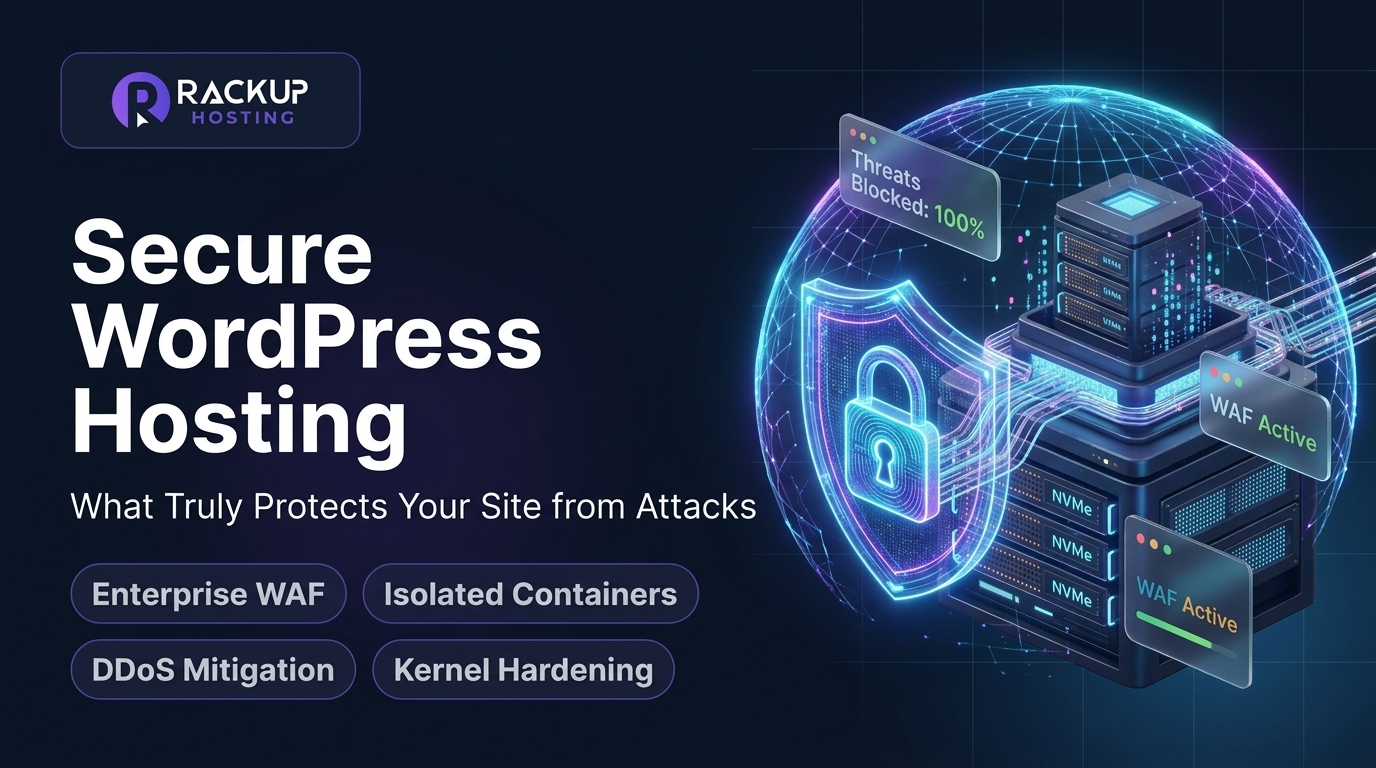
Secure WordPress Hosting: What Truly Protects Your Site from Attacks

Key Takeaways
- ✓On shared hosting, one compromised account can put neighbouring sites at risk; isolated containers keep your files and database separate.
- ✓Security plugins run inside WordPress, so they can't fix server-level weaknesses. Hosting and hardening matter more.
- ✓RackUp Cloud WordPress hosting includes isolation, automated backups, free SSL, staging, a firewall and two-factor login; add a cloud WAF and malware scanning for extra protection.
Table of Contents
- •Secure WordPress Hosting: What Truly Protects Your Site from Attacks
- •The Fragile Security Illusion of Shared Web Hosting
- •Cross-Account Contamination and Symlink Exploits
- •The Shared Temporary Directory Hazard
- •Resource Starvation from Botnet DDoS Waves
- •Why WordPress Security Plugins Cannot Solve Server-Level Flaws
- •What Truly Secure WordPress Hosting Looks Like
- •Docker & LXD Container Isolation
- •Layer 7 Web Application Firewalls (WAF) and Rate Limiting
- •Automated Intrusion Detection with Fail2ban
- •Immutable Offsite Backups and Point-in-Time Recovery
- •What Hardened WordPress Hosting Means: Server-Level Checklist
- •Step 1: Read-Only File Permissions for Core Files
- •Step 2: Disabling PHP Execution in Upload Directories
- •Step 3: Blocking XML-RPC and wp-login.php Brute Force
- •Step 4: Hardening wp-config.php and Salting Security Keys
- •Step 5: Enforcing Modern TLS 1.3 and HSTS Preloading
- •Step 6: Deploying Fail2ban Jail Filters for WordPress
- •Step 7: Zero-Trust Database Privilege Isolation
- •Secure Hosting Comparison
- •Who needs to take WordPress security most seriously
- •1. Online stores
- •2. Professional services
- •3. Agencies managing client sites
- •Frequently Asked Questions
- •Build on a Safer Foundation with RackUp IT
Secure WordPress Hosting: What Truly Protects Your Site from Attacks
For business executives, e-commerce managers, and agency founders, having a corporate website injected with malware or hijacked by crypto-mining bots is a catastrophic scenario. Beyond the immediate loss of customer trust, a hacked website triggers instant blacklisting by Google Chrome, suspension by payment gateways like Stripe and PayPal, and thousands of dollars in emergency digital remediation fees.
Yet, most website operators place their faith in a fragile security layer: installing a free security plugin from the WordPress repository while leaving their site hosted on an entry-level shared server.
When choosing secure wordpress hosting, the software plugins you install matter far less than the foundational infrastructure enclosing your application. In this deep dive, we break down how malicious actors exploit shared environments, and why container-isolated cloud hosting gives you a much stronger foundation to build on.
The Fragile Security Illusion of Shared Web Hosting
Budget web hosting companies operate on massive density: placing hundreds or even thousands of customer websites onto a single physical server running a shared Linux kernel. While access controls like Apache suPHP or CloudLinux CageFS provide basic isolation, shared architectures harbor inherent structural vulnerabilities.
[Legacy Shared Hosting Host]
  ├── Customer A: Abandoned, Outdated WP Site (Malware Injected via Plugin Vulnerability)
  │    │
  │    └── (Exploits Local Privilege Escalation or Symlink Traversal)
  │          │
  │          ▼
  ├── Customer B: Your Business Storefront (Infected via Shared Kernel /tmp Access!)
  └── Customer C: Corporate Database (Exposed to Internal Packet Sniffing)
Cross-Account Contamination and Symlink Exploits
If an abandoned blog belonging to Customer A gets breached due to an unpatched slider plugin, the attacker obtains a low-privilege shell on the server. From there, the hacker doesn't need to attack your website directly.
Using symlink traversal techniques (ln -s /home/customer_b/public_html/wp-config.php exploit.txt), attackers can bypass standard read permissions if Apache directives are misconfigured. Once they read your wp-config.php, they gain direct access to your database credentials, allowing them to extract customer emails, hashed passwords, and order records without ever touching your login screen.
The Shared Temporary Directory Hazard
Standard PHP installations write session tokens and file uploads to a global /tmp directory. If the shared host does not enforce strict session namespace isolation, an attacker on the same machine can read temporary session files, hijack active administrator sessions, and bypass multi-factor authentication entirely.
Resource Starvation from Botnet DDoS Waves
When a neighboring site on a shared server attracts a massive Layer 7 botnet attack or brute-force wave, the server's CPU and network interface become overwhelmed. Your secure website experiences severe latency or crashes completely, even though you did nothing wrong.
Why WordPress Security Plugins Cannot Solve Server-Level Flaws
Security plugins (such as Wordfence, iThemes, or Sucuri) provide valuable frontend alerts, but they operate within the application layer of WordPress itself:
1. Execution Priority: A security plugin cannot execute until the WordPress core and PHP engine have already initialized. If an attacker submits a malicious POST request that triggers an unpatched vulnerability in index.php or a theme handler, the code executes before the plugin can inspect the payload.
2. Resource Degradation: Application-level firewalls run heavy regex pattern checks on every incoming HTTP request using PHP. Under a distributed brute-force attack, your server will crash from PHP memory exhaustion simply trying to log the attacks.
3. No Protection Against Host-Level Compromise: If an attacker gains root access to the physical server or bypasses the shared file system, an internal WordPress plugin cannot detect or block the intrusion.
4. Database Table Flooding: Many security plugins write millions of intrusion log rows into your MySQL database (wp_wfHits, wp_wfBlockedIPLog), bloating your database and grinding real customer transactions to a halt.
What Truly Secure WordPress Hosting Looks Like
True security is achieved at the operating system and infrastructure layers. Rather than relying on software band-aids, developer-grade managed hosting isolates every web property inside an independent virtual perimeter.
[RackUp IT Managed Cloud VPS Defense Stack]
  │
  ├── [Layer 1: Edge & Network Security]
  │     ├── Cloudflare Edge DDoS Shield & Global Anycast
  │     └── Fail2ban Automated IP Shunning (Blocks repeat bad actors)
  │
  ├── [Layer 2: Hardened Reverse Proxy (NGINX)]
  │     ├── ModSecurity Web Application Firewall (WAF)
  │     ├── Rate Limiting on wp-login.php and xmlrpc.php
  │     └── Strict SSL/TLS 1.3 & HSTS Security Headers
  │
  └── [Layer 3: Isolated Docker Container Sandbox]
        ├── Dedicated Read-Only File System Mounts
        ├── Isolated MariaDB Database Container
        ├── Non-Root User Execution (www-data sandbox)
        └── Automated Daily Offsite Backup Snapshots
Docker & LXD Container Isolation
In an isolated container setup, your WordPress site runs inside its own self-contained Docker or LXD container. Memory spaces, process tables, network sockets, and file storage are separated using Linux cgroups and kernel namespaces. Even if a zero-day vulnerability compromises a neighboring container on the physical node, the attacker is trapped inside an empty sandbox, unable to view or touch your files.
Layer 7 Web Application Firewalls (WAF) and Rate Limiting
Server-level firewalls (like NGINX combined with ModSecurity and OWASP Core Rule Sets) filter malicious traffic before it ever touches PHP. Malicious SQL injection strings, Cross-Site Scripting (XSS) payloads, and path traversal attempts are dropped at the network boundary before they reach WordPress.
Automated Intrusion Detection with Fail2ban
At the server perimeter, daemon services like fail2ban monitor authentication log files in real time. If an IP address submits 5 failed password attempts to wp-login.php or SSH within 60 seconds, fail2ban automatically drops a kernel-level iptables or nftables ban on that IP address, preventing botnets from consuming server resources.
Immutable Offsite Backups and Point-in-Time Recovery
A hosting platform's ultimate security defense is its disaster recovery posture. If an authorized user accidentally installs compromised code, automated daily snapshots stored offsite on encrypted object storage allow you to roll your site back to a clean state quickly.
What Hardened WordPress Hosting Means: Server-Level Checklist
Hardened WordPress hosting means the server is locked down before WordPress runs: isolated sites, strict file permissions, no file editing from the dashboard, limited database rights and current TLS. Some of these are your host’s job and some are yours; use the list below to check both.
If you run your own server (a VPS), apply these steps yourself:
Step 1: Read-Only File Permissions for Core Files
Prevent malware from injecting persistent backdoors by locking down write permissions on WordPress core files:
# Set directory permissions to 755 (execute and read for web server)
find /var/www/html/ -type d -exec chmod 755 {} \;

# Set file permissions to 644 (read-only for group and others)
find /var/www/html/ -type f -exec chmod 644 {} \;

# Lock down wp-config.php so only root and web server owner can read it
chmod 600 /var/www/html/wp-config.php
Step 2: Disabling PHP Execution in Upload Directories
Many backdoor exploits try to execute a rogue .php file uploaded into /wp-content/uploads/. Prevent this entirely with an NGINX rule block:
# Block direct PHP execution inside the uploads folder
location ~* ^/wp-content/uploads/.*\.php$ {
    deny all;
    return 403;
}
Step 3: Blocking XML-RPC and wp-login.php Brute Force
WordPress XML-RPC was historically used for remote mobile publishing, but today it is primarily leveraged by botnets to execute multi-call brute force password guessing. Disable it at the web server level:
# Block XML-RPC completely
location = /xmlrpc.php {
    deny all;
    access_log off;
    log_not_found off;
    return 403;
}
Step 4: Hardening wp-config.php and Salting Security Keys
In your wp-config.php, disable the in-dashboard theme and plugin editor to prevent compromised admin sessions from injecting PHP web shells:
// Prevent unauthorized file editing from inside WP-Admin
define('DISALLOW_FILE_EDIT', true);

// Restrict plugin and theme installations without SSH / SFTP
define('DISALLOW_FILE_MODS', true);

// Force SSL across the entire administrative dashboard
define('FORCE_SSL_ADMIN', true);
Step 5: Enforcing Modern TLS 1.3 and HSTS Preloading
Configure NGINX to reject outdated, insecure cipher suites (SSLv3, TLS 1.0, TLS 1.1) and mandate modern cryptographic handshakes:
ssl_protocols TLSv1.2 TLSv1.3;
ssl_prefer_server_ciphers on;
ssl_ciphers ECDHE-ECDSA-AES128-GCM-SHA256:ECDHE-RSA-AES128-GCM-SHA256:ECDHE-ECDSA-AES256-GCM-SHA384:ECDHE-RSA-AES256-GCM-SHA384;

# Enable HTTP Strict Transport Security (HSTS)
add_header Strict-Transport-Security "max-age=31536000; includeSubDomains; preload" always;
add_header X-Frame-Options "SAMEORIGIN" always;
add_header X-Content-Type-Options "nosniff" always;
Step 6: Deploying Fail2ban Jail Filters for WordPress
To prevent brute force botnets from overloading PHP workers, configure a dedicated Fail2ban jail on your VPS host that inspects NGINX access logs:
# /etc/fail2ban/jail.d/wordpress.local
[wordpress-auth]
enabled  = true
port     = http,https
filter   = wordpress-auth
logpath  = /var/log/nginx/access.log
maxretry = 5
findtime = 120
bantime  = 86400
action   = iptables-multiport[name=NoAuthFailures, port="http,https"]
Create the corresponding regex filter in /etc/fail2ban/filter.d/wordpress-auth.conf:
[Definition]
failregex = ^<HOST> .* "POST /wp-login.php HTTP/.*" (401|403|200)
            ^<HOST> .* "POST /xmlrpc.php HTTP/.*" 200
ignoreregex =
This drops repetitive automated password guessers at the Linux kernel firewall layer for 24 hours, so they stop consuming your site's resources.
Step 7: Zero-Trust Database Privilege Isolation
Many automated WordPress setup scripts grant MySQL users global ALL PRIVILEGES on the entire database server. A hardened configuration restricts the WordPress database user strictly to its specific database instance:
-- Revoke administrative file and grant permissions
REVOKE FILE, PROCESS, SUPER ON *.* FROM 'wp_user'@'localhost';

-- Grant only DML permissions necessary for daily operations
GRANT SELECT, INSERT, UPDATE, DELETE, CREATE, DROP, ALTER, INDEX ON wp_production.* TO 'wp_user'@'localhost';
FLUSH PRIVILEGES;
Restricting FILE privileges prevents attackers who execute SQL injection from reading host files via LOAD_FILE() or writing malicious web shells using INTO OUTFILE.
Secure Hosting Comparison
| Security layer | Typical shared hosting | RackUp Cloud WordPress hosting | What you should add |
|---|---|---|---|
| Isolation | Many accounts on one system, separated by software | Your site in its own isolated container | Nothing: handled by the host |
| Backups | Often a paid add-on | Automated backups with one-click restore | An occasional off-server copy for extra safety |
| SSL | Usually free Let's Encrypt | Free SSL that renews automatically | Nothing |
| Safe updates | Test on live | 1-click staging with push to live | Test every major update on staging first |
| Web application firewall | Varies by host | Basic firewall and IP blocking in the dashboard | A cloud WAF (e.g. Cloudflare) for extra protection |
| Login protection / 2FA | Varies | Two-factor login and WordPress hardening in the dashboard | Nothing: turn it on in the dashboard |
| Malware scanning | Sometimes paid | Not included | A scanner plugin or external monitoring |
We'd rather be clear about what's included than promise "bank-grade security". The RackUp Cloud WordPress hosting gives you the foundation (isolation, backups, SSL, staging, a firewall and two-factor login) from $2.49 a month. Combine it with the hardening checklist above and a free cloud firewall and you're well ahead of most small business sites.
Who needs to take WordPress security most seriously
1. Online stores
WooCommerce stores handle customer accounts and orders. Card data should always stay with your payment gateway (EPS, Stripe, PayPal and similar), never on your server. A compromised site can still inject scripts into checkout pages, so keep plugins updated, use staging, and limit admin accounts.
2. Professional services
Law firms, clinics and consultancies depend on trust. A "Deceptive site ahead" warning from Google can wipe out enquiries overnight. Regulated data like health records has its own legal requirements that go beyond hosting, so take specialist advice if you handle it.
3. Agencies managing client sites
One weak site can damage a client relationship. Isolated hosting per site, regular backups and a staging-first update routine keep problems contained.
Frequently Asked Questions
Is managed WordPress hosting more secure than regular hosting?
It can be. The main gains come from isolation from other customers, reliable backups and a safe way to test updates. Check exactly which security features a host includes rather than trusting the label.
Do I still need a security plugin with secure hosting?
Yes, for things hosting doesn't cover on our plans: two-factor authentication, login limiting, malware scanning and a firewall. Pick a lightweight plugin, or put a cloud WAF like Cloudflare in front of your site.
How does container isolation help against malware?
Your site's files, database and processes are separated from other customers' sites. If a neighbouring site is compromised, the attacker can't simply read your files.
What should I do if my site is already infected?
Take a backup for evidence, then clean or reinstall WordPress core, plugins and themes from trusted sources. Remove unknown admin users, change all passwords and database credentials, and restore from a clean backup if you have one. We migrate WordPress sites for free, so talk to our team about moving to a clean, isolated server.
How do backups protect against ransomware and hacks?
If your site is damaged, a clean backup lets you roll back quickly. Keep at least one copy outside your hosting account too.
Build on a Safer Foundation with RackUp IT
At RackUp IT, every Cloud WordPress site runs in its own isolated container with reserved RAM, automated backups with one-click restore, free SSL, 1-click staging, a firewall, WordPress hardening and two-factor login. That makes the security basics easy to get right.
For related reading, see how to set up a WordPress staging site and why cheap shared hosting hurts SEO.
Start with a safer WordPress foundation
Click the button below to learn more and get started.
Unsure Which Cloud Hosting Plan Fits Your Site?
Answer 4 quick diagnostic questions to estimate the server CPU, RAM and storage you need with transparent pricing.
Cybersecurity researcher and DevOps Engineer focused on server hardening, firewall policies, NGINX performance optimization, and DDoS mitigation strategies for cloud VPS hosting.
Related Posts
 WordPress Hosting
How to Fix “Error Establishing a Database Connection” in WordPress
A step-by-step fix for WordPress's "Error establishing a database connection": credentials, DB_HOST, a stopped MySQL server, corrupted tables and overloaded databases.
 WordPress Hosting
How to Install an SSL Certificate on WordPress (and Fix Mixed Content)
How to move a WordPress site to HTTPS: get a free certificate, update the site URLs, fix mixed content, force HTTPS at the server, and avoid the common redirect loop.
 WordPress Hosting
WordPress Migration Checklist: Before, During and After the Move
Use this WordPress migration checklist to move your site without lost data, broken links or downtime: preparation, the move itself, and post-launch checks.